Deploying software to your fleet
ownMDM installs software on your Macs for you. You upload an app once, decide who should get it, and the Macs take care of the rest — downloading and installing in the background, without interrupting whoever is using them.
This guide covers the full path: uploading an app, testing it safely, and releasing it to the fleet.
The testing and production model
Before uploading anything, it helps to understand the one concept that makes the rest safe.
Every app lives in one of two stages:
- Testing — visible only to Macs you have opted into testing. This is where an app lands by default.
- Production — visible to your whole fleet.
An app is never deployed fleet-wide by accident, because reaching production is always an explicit action you take. Promoting an app is a single click, and so is moving it back if something is wrong.
Step 1 — Upload the app
Go to Software in the sidebar. This is your catalogue: every app ownMDM can install, with its version and current stage.
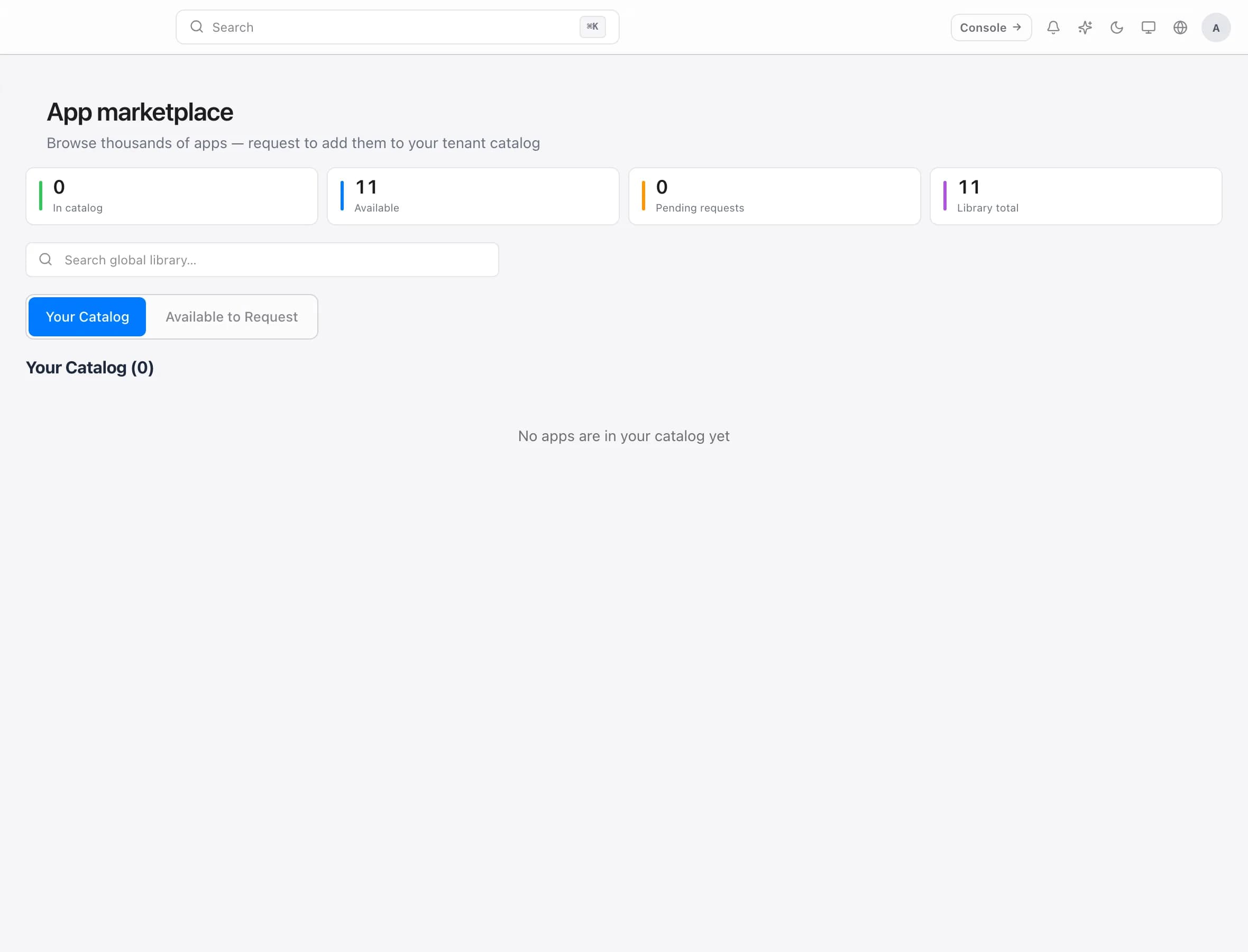
Select Upload, or drag the installer straight onto the page. ownMDM accepts the two formats Mac software normally ships in — .pkg and .dmg.
Once the upload finishes, ownMDM inspects the file and fills in what it can work out on its own: the app name, its version, the identifier macOS uses to recognise it, and where it installs to. You do not have to supply any of this by hand.
Step 2 — Fill in the details users will see
Select the newly uploaded app to open its settings. Most fields are already populated, but a few are worth your attention because they are what people see when browsing available software:
- Give it a display name that people will recognise — "Google Chrome", not "GoogleChrome-120".
- Write a short description explaining what the app is for.
- Pick a category so it appears in a sensible place.
- Set the minimum macOS version if the app needs a recent release.
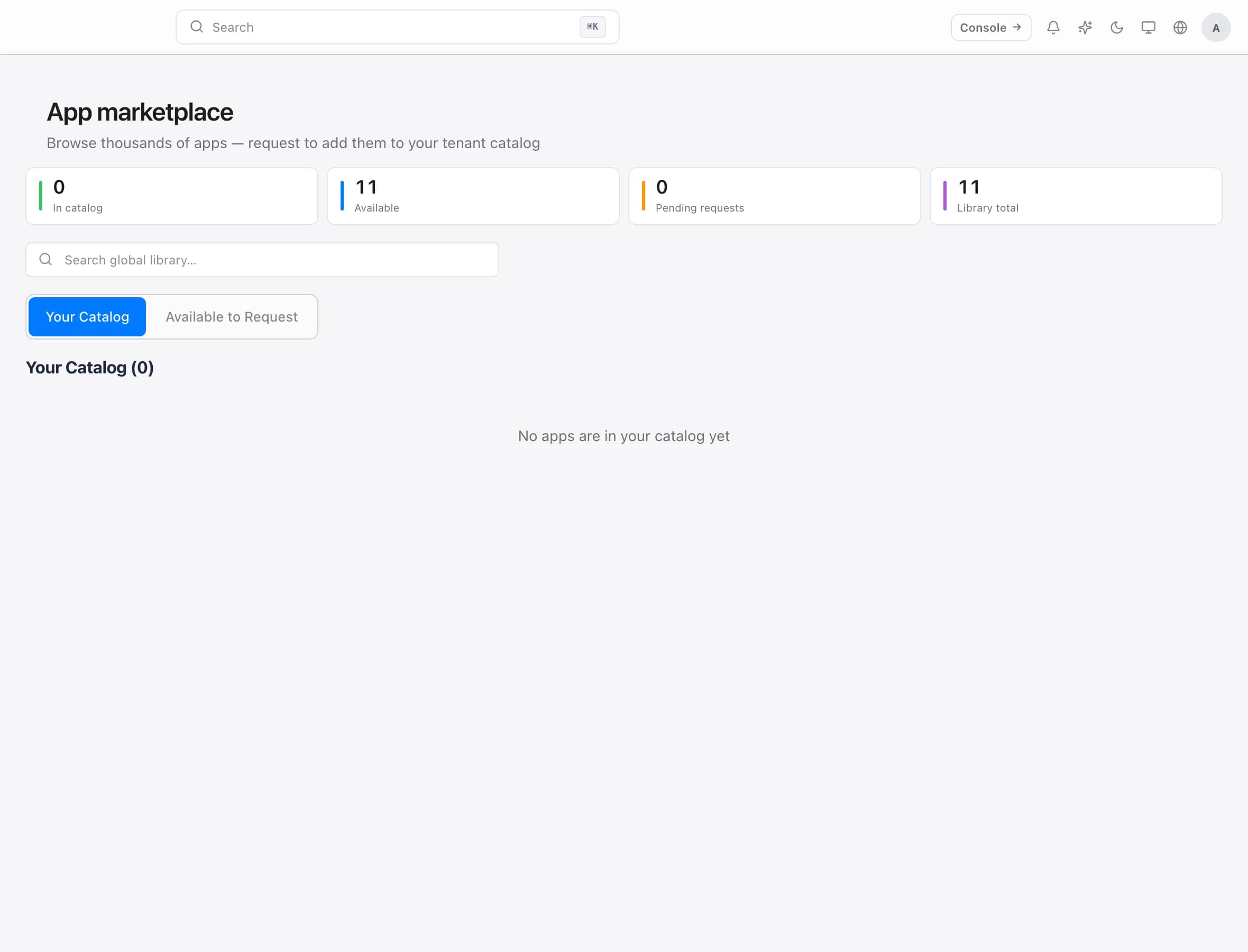
Save when you are done. The app is now in testing.
Step 3 — Test on a few Macs
Confirm the app installs cleanly before anyone else receives it. Assign it to one or two Macs you can check, and wait for their next check-in.
Look for three things:
- The app installs without error
- It launches and works
- The version is the one you expected
You can watch progress from the app's page, which lists which Macs have it and what state each install is in.
Step 4 — Promote to production
Once you are satisfied, select Promote to production. The app becomes available to your whole fleet, and Macs pick it up at their next check-in.
There is no separate publish step and no waiting period. If you need to pull it back, move it to testing again — Macs stop offering it, though machines that already installed it keep it.
Choosing how an app is delivered
Not everything should install automatically. ownMDM offers three delivery modes, and picking the right one matters more than most settings:
| Mode | What happens | Good for |
|---|---|---|
| Managed | Installs automatically, stays installed | Security tools, VPN clients, anything required |
| Self-service | Appears in a catalogue for people to install themselves | Optional tools, large apps, role-specific software |
| Blocked | Removed if found, prevented from installing | Software your organisation does not permit |
A common mistake is making everything managed. Self-service is usually the better default for anything a person might not need: it keeps installs off machines that will never use the app, and gives people a sense of choice rather than software appearing unannounced.
What people see on their Mac
Anything you deliver as self-service shows up in an app catalogue on the Mac itself. People browse it, install what they need, and see updates when they are available.
Managed apps install quietly in the background. There is nothing to click and no prompt — the app is simply there the next time they look.
Troubleshooting
The app has not installed on a Mac. Macs install during their regular check-in rather than immediately. Give it a few hours. If the machine has not checked in at all, that is the real problem — start there.
The upload was rejected. ownMDM accepts .pkg and .dmg files. A .zip containing an app needs to be packaged first.
Installed, but the wrong version. Check whether an older version is still assigned. Removing the outdated assignment lets the newer one take effect.
The app installs but will not open. This is usually the app itself rather than the deployment — most often a macOS version requirement. Set a minimum macOS version so ownMDM only offers it to Macs that can run it.